How to make a Train Window AI video
One car photo, a miniature on a windowsill, a tunnel and a road reveal. Prepare the image and learn what to check at each step.
Paid access opens after payment activation. The illustrations below are original workflow diagrams, not screenshots or generated samples. Hands-on times are estimates, not measured benchmarks.
1. Choose and prepare one car photo
Tool: Your phone’s Photos editor
Time: About 2–5 minutes of preparation
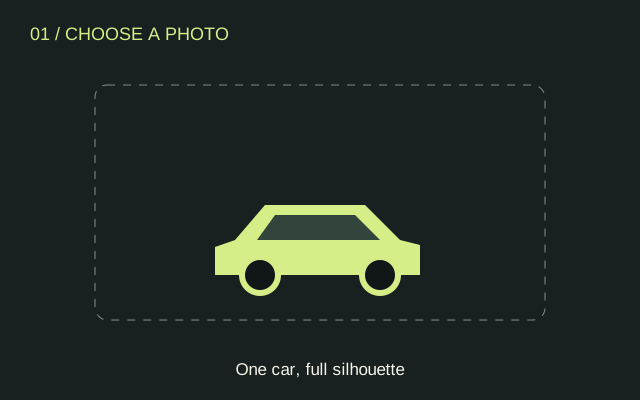
Choose a photo you own or have permission to process. Use one car with its complete body and wheels visible, preferably a rear three-quarter view in daylight. Crop out other cars and people, and obscure readable plates. Save a JPEG, PNG or WebP under 10 MB. Keep the original file so you can compare the car’s silhouette and colour with the result.
2. Check the format and price
Tool: TrainWindowAI photo workflow and pricing page
Time: About 1–2 minutes to review
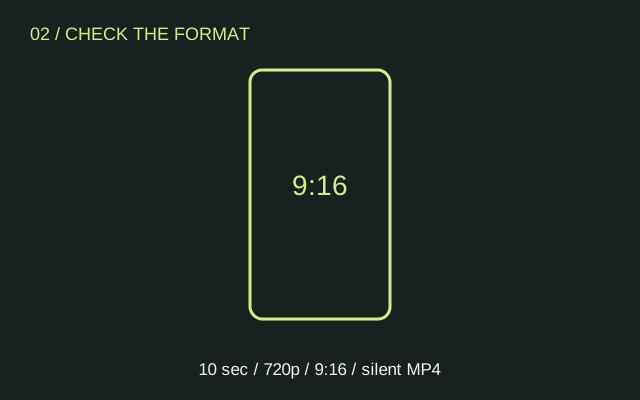
The configured format is 15 seconds, 720p, 9:16 and MP4 with generated sound. The one-time $8.99 purchase provides 10 credits; one video uses 10 credits. Paid access opens after payment activation. Review the available controls and service disclosures before uploading or paying. You do not need to write a prompt: the workflow uses an original fixed scene description, without submitting another creator’s video as a reference.
3. Follow the train window transition
Tool: Seedance 2.0 Mini through APIMart in TrainWindowAI
Time: Generation time varies; no verified completion-time promise
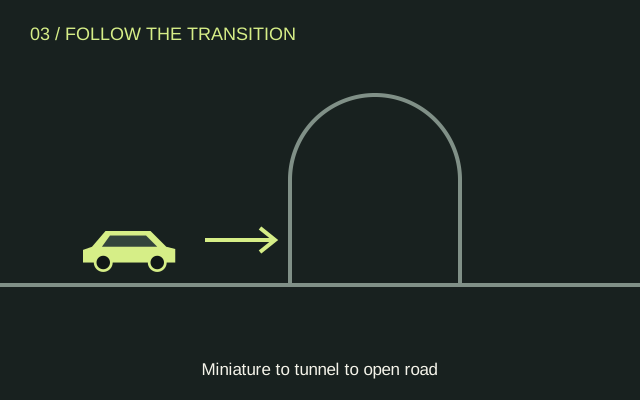
When the generation controls are available to your account, upload the prepared photo and submit the configured scene. The intended story starts with a miniature on the train windowsill, moves into tunnel darkness and reveals a full-size car on a road. Check progress in My videos. If a job remains pending, check that existing job instead of submitting again. Confirmed failed or safety-rejected jobs return credits.
4. Review, download and share
Tool: My videos, your device’s video player and your social app
Time: About 2–5 minutes of review; download depends on connection
Play the result from beginning to end, then pause before and after the dark transition. Compare the paint colour, wheels, body proportions and direction of motion with your photograph. Look for abrupt cuts or objects that change unexpectedly. Download the MP4 and save a local copy. The output includes generated environmental sound; add only music licensed for your use in your social app, and disclose that the video uses AI when sharing.
For a deeper explanation, read the shot-by-shot guide. The sourced trend history separates creator examples from tool launch claims.